![logo_full_orange@3x (1).png]](https://support.botdoc.io/hs-fs/hubfs/logo_full_orange@3x%20(1).png?height=40&name=logo_full_orange@3x%20(1).png)
Users can add a new Multi-Function Printer (MFP) to a Workspace.
During setup, the user must define a label, define a password, and assign a valid MFP license.
License assignment can be handled automatically or manually if needed.
When logged in (or as a Partner "impersonating" a User), navigate to the "Multi Function Printers" page. There, at the top right, you will see a button labeled "Add MFP." Click there.
A window will open titled "Add MFP," and you can continue to the steps below.
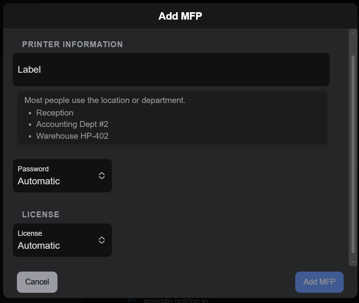
Automatic (Recommended Method):
- Set a Label. The label identifies the MFP inside the Workspace (eg. Front Desk, Back Office, etc.)
- Password set to "Automatic." This will auto-generate a password for the MFP credentials.
- License set to "Automatic." This will auto-assign an available license.
- When filled, click "Add MFP" at the bottom of the window.
After clicking "Add MFP," a window will pop up showing the newly created credentials for this MFP that you have added, including the label, email, and password.
Click "Done," and you will be returned to the main "Multi Function Printers" page, and there will now be a card showing the new MFP.
From this card, the necessary SMTP information for the MFP can be easily copied and pasted, as well as edited in the future if needed.
Manual (Partners Only):
If you opt to do the MFP credential creation, the window and needed information are the same, with some added caveats. (Only Partner-level users can effectively use this option.)
- Set a Label. The label identifies the MFP inside the Workspace (eg. Front Desk, Back Office, etc.)
- Password set to "Manual." A field will appear to create the password.
- License set to "Manual." A field will appear for the license key. (Select an "Available" key from your license pool.
- When filled, click "Add MFP" at the bottom of the window.
As above, after clicking "Add MFP," a window will pop up showing the newly created credentials for this MFP that you have added, including the label, email, and password.
Click "Done," and you will be returned to the main "Multi Function Printers" page, and there will now be a card showing the new MFP.
Caveats for Manual creation:
If the manually entered license is currently assigned to another Workspace:
-
That Workspace loses the assigned license
-
The license is reassigned to the current Workspace
Keep these details in mind if you are a Partner and want to manually add licenses.