![logo_full_orange@3x (1).png]](https://support.botdoc.io/hs-fs/hubfs/logo_full_orange@3x%20(1).png?height=40&name=logo_full_orange@3x%20(1).png)
🔑 Prerequisites
-
Access to the MFP’s TopAccess Web Interface
-
Administrator login credentials
-
Botdoc SMTP username and password (provided by Botdoc)
- Root Certificate file - Download at:
DER - https://support.botdoc.io/hubfs/MFP_Certificates/botdoc-apimfp.cer
PEM - https://support.botdoc.io/hubfs/MFP_Certificates/botdoc-apimfp.pem
Install the Botdoc Root Certificate
Before configuring SMTP, the Toshiba must trust the Botdoc Root Certificate.
-
Log into the device’s TopAccess Web Interface (http://<printer-ip>) as Admin.
-
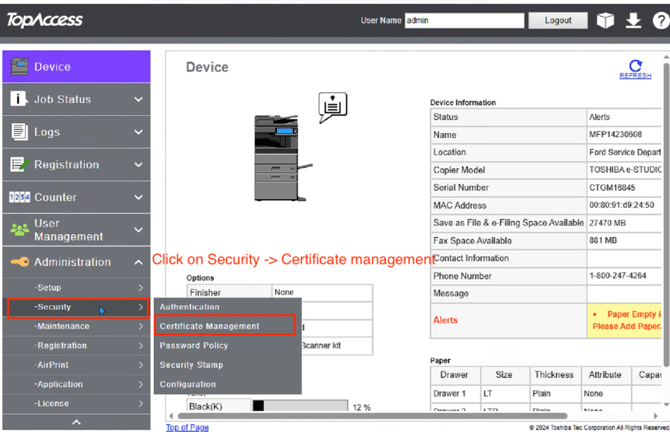
In the left menu, go to:
Administration → Security → Certificate Management
-
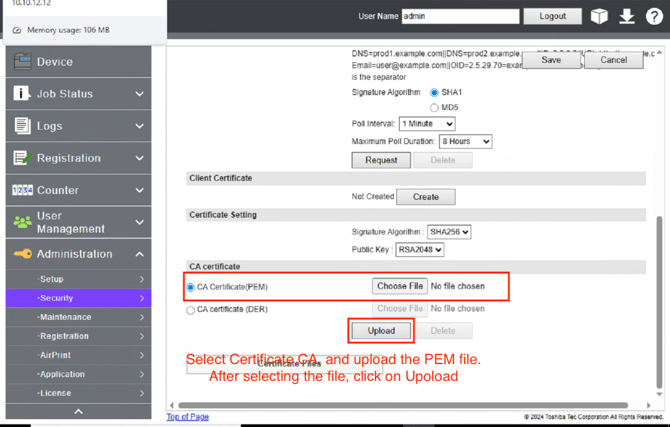
Under CA Certificate, select CA Certificate (PEM), then click Choose File.
-
Upload the Botdoc Authority Root Certificate
-
Click Upload to install it.
Configure SMTP Client
-
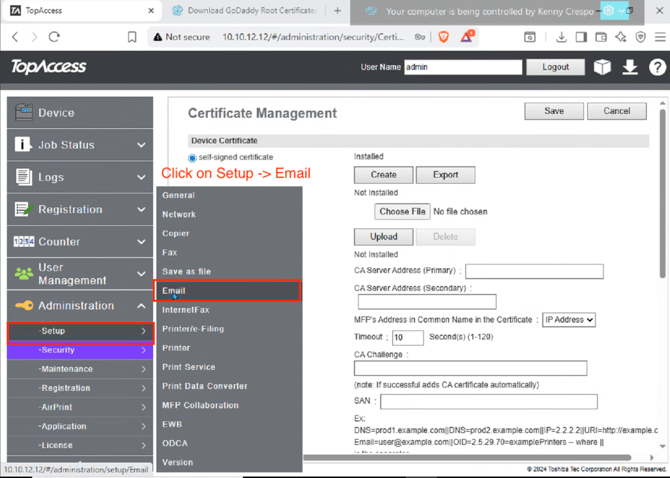
In the left menu, go to:
Administration → Setup → Email
-
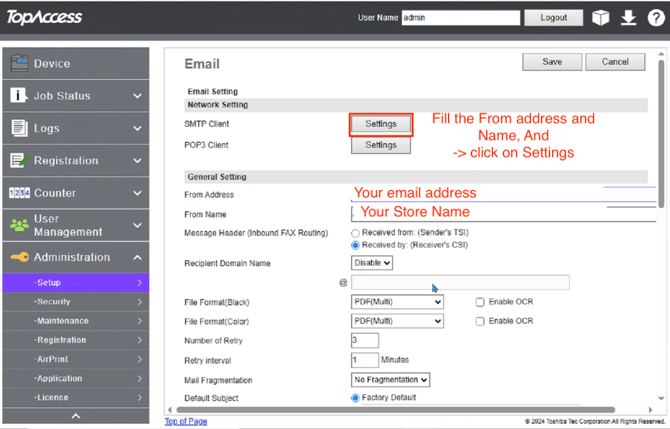
Fill in the From Address and From Name (this will appear as the sender when scanning to email).
Then click Settings next to Network Setting → SMTP Client.
-
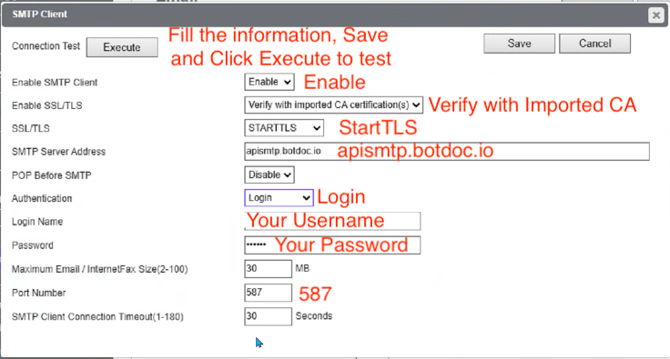
In the SMTP Client window, enter the following details:
|
Setting |
Value |
|---|---|
|
Enable SMTP Client |
Enable |
|
Enable SSL/TLS |
Verify with imported CA certification(s) |
|
SSL/TLS Type |
STARTTLS |
|
SMTP Server Address |
apimfp.botdoc.io |
|
Authentication |
Login |
|
Login Name |
Your Botdoc username |
|
Password |
Your Botdoc password |
|
Port Number |
587 |
|
Timeout |
30 seconds |
-
Click Save, then click Execute to run a test and confirm a successful connection.
✅ Verify Configuration
After clicking Execute, you should see a success message indicating the SMTP test passed.
Your Toshiba MFP is now ready to send documents securely through Botdoc SMTP.
🎉 Done!
Your Toshiba e-STUDIO MFP is successfully configured to use Botdoc SMTP with TLS encryption and a trusted Botdoc certificate.