![logo_full_orange@3x (1).png]](https://support.botdoc.io/hs-fs/hubfs/logo_full_orange@3x%20(1).png?height=40&name=logo_full_orange@3x%20(1).png)
Partners can impersonate a user within a Workspace to troubleshoot issues, manage MFP devices/licenses, and view the system exactly as that user sees it.
While impersonating a user, all actions are performed as that user within the selected Workspace.
How to Start Impersonation
-
Navigate to Partnerships → Workspaces.
-
Locate the Workspace you want to access.
-
Click Impersonate for the user associated with that Workspace.
The system may take a few seconds to complete the process.
After the session begins, you are redirected into the MFP interface as the impersonated user.
Impersonation Banner
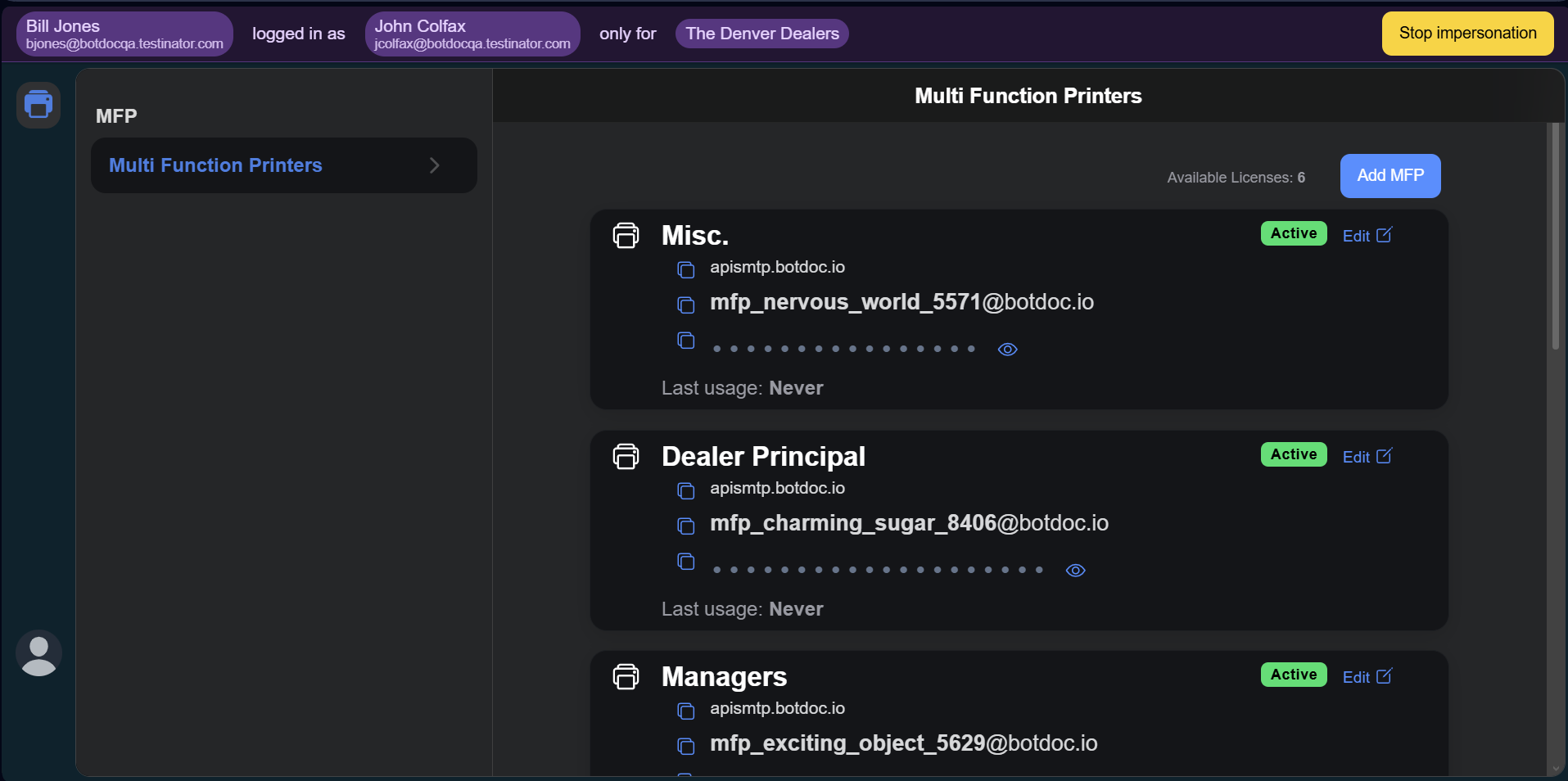
While impersonating a user, the application displays a persistent purple banner at the top of the screen. Not very pretty looking, but definitely visible, which is key.
This banner indicates that impersonation mode is active and provides key information about the session.
The banner displays:
Impersonator (Partner)
-
Name
-
Email
Impersonated User
-
Name
-
Email
Workspace Context
-
Workspace name
This information ensures it is always clear who is impersonating whom and which Workspace is being accessed.

Workspace-Scoped Behavior
All actions taken during impersonation:
-
Are performed as the impersonated user
-
Apply only to the selected Workspace
How to Stop Impersonation
-
Locate the impersonation banner at the top of the application.
-
Click Stop Impersonating.
When impersonation ends:
-
The impersonation session is closed
-
Your Partner session is restored
-
You are redirected back to your view of Partnerships → Workspaces.
-
This is the page where the impersonation session was originally started.
-