![logo_full_orange@3x (1).png]](https://support.botdoc.io/hs-fs/hubfs/logo_full_orange@3x%20(1).png?height=40&name=logo_full_orange@3x%20(1).png)
Partners have access to centralized Workspace Management.
From the Partners main account page, there are available options to view and manage MFP licenses, as well as a page to view and manage all onboarded Workspaces.
These pages allow a Partner to:
-
View all Workspaces they own or manage
-
Onboard new Workspaces
-
Manage MFP license allocation per Workspace
-
Impersonate a Workspace's Primary User for support purposes
- View and manage all MFP licenses
Workspace List (Partnerships → Workspaces)
This page displays a list of all Workspaces associated with the Partner.
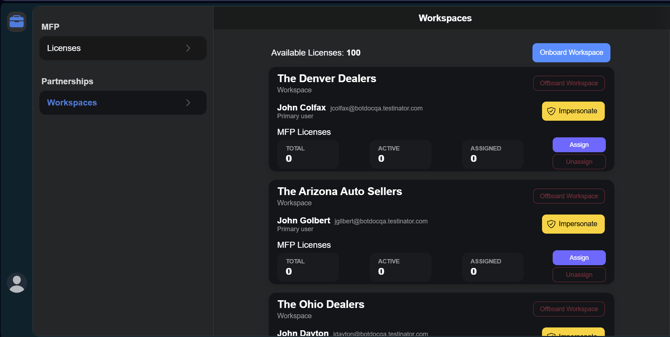
Each Workspace entry includes:
-
Workspace Information: Workspace Name
-
Primary User Information: Name, Email
-
Impersonate button
-
Assign button
-
Remove button
-
Offboard Workspace
Selecting the Impersonate button logs the Partner in as the Primary User of the selected Workspace.
Onboard New Workspace
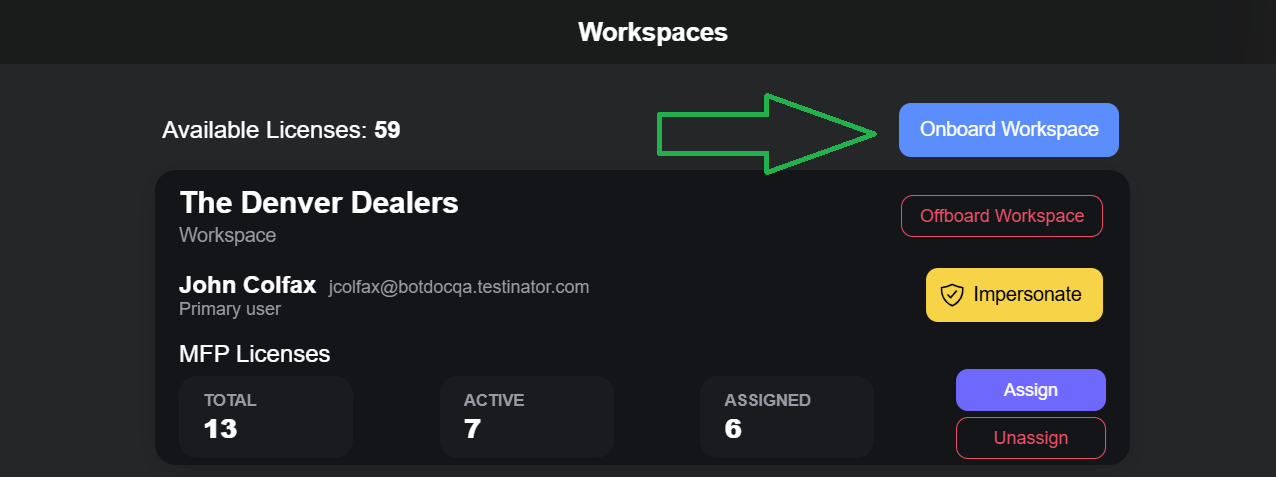
An Onboard Workspace button is visible on the page.
Selecting this button starts the Workspace onboarding flow.
MFP License Management
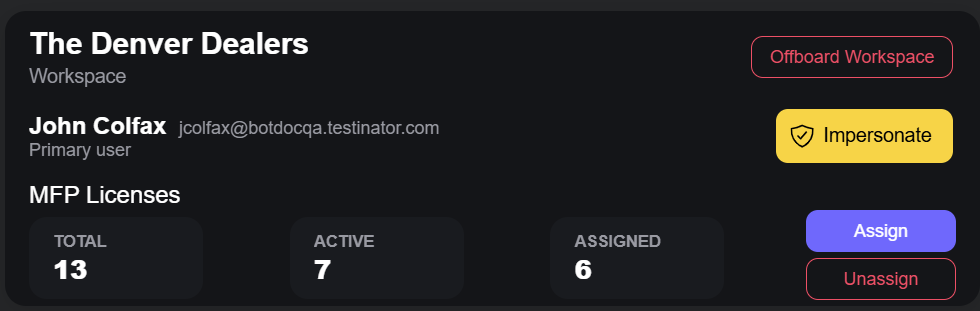
Each Workspace displays MFP license usage details and related actions.
License Counters
For each Workspace, the following values are shown:
-
Total – Total MFP licenses assigned to the Workspace
-
Active – Licenses currently in use
-
Assigned – Licenses assigned but not currently in use
License counts cannot be negative or invalid.
License Actions
Each Workspace provides the following actions:
-
Assign Licenses
Allows the Partner to assign additional MFP licenses to the Workspace. -
Unassign Licenses
Allows the Partner to remove previously assigned licenses that are unassigned and marked as Available. Active licenses cannot be removed.
License numbers update after assignment or removal.