![logo_full_orange@3x (1).png]](https://support.botdoc.io/hs-fs/hubfs/logo_full_orange@3x%20(1).png?height=40&name=logo_full_orange@3x%20(1).png)
Two-Factor Authentication (2FA) can be enabled or disabled for the files sent with the Botdoc Secure MFP integration.
Existing MFP:
- Log in to Botdoc Spark for MFP management
- Begin impersonation of the Workspace you intend to edit
-
Access the MFP > Multi Function Printers tab
-
Select "Edit" on the MFP you'd like to enable/disable 2FA
-
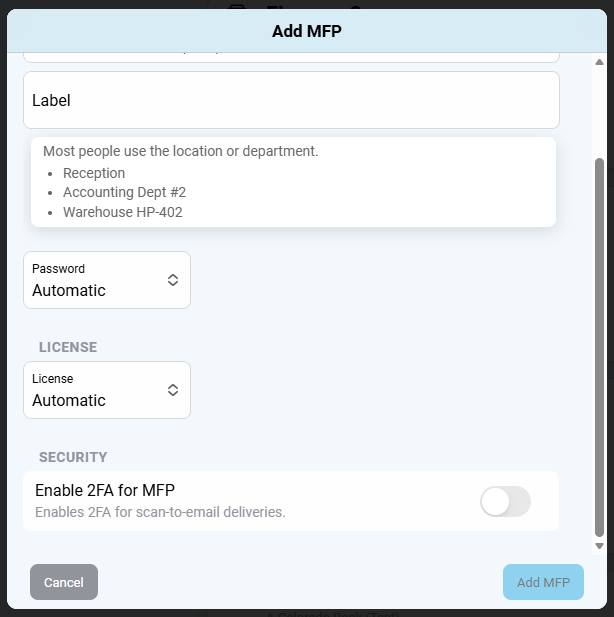
Enable/Disable the “Enable 2FA for MFP” toggle

Enabling for newly added MFP:
- Log in to Botdoc Spark for MFP management
- Begin impersonation of the Workspace you intend to edit
-
Access the MFP tab > Multi Function Printers tab
-
Select "Add MFP"
- Follow the normal "Add MFP" setup steps
-
Under the Security tab, enable the “Enable 2FA for MFP” toggle