![logo_full_orange@3x (1).png]](https://support.botdoc.io/hs-fs/hubfs/logo_full_orange@3x%20(1).png?height=40&name=logo_full_orange@3x%20(1).png)
Before you begin — what Botdoc needs from your IdP
Botdoc reads three fields from every SSO login: your email, first name, and last name. Your identity provider must send all three, and the Unique User Identifier (Name ID) must be in email format. If any of these is missing, sign-in will fail. Most providers send them by default — keep the defaults unless your provider's guide says otherwise.
Botdoc reads three fields from every SSO login: your email, first name, and last name. Your identity provider must send all three, and the Unique User Identifier (Name ID) must be in email format. If any of these is missing, sign-in will fail. Most providers send them by default — keep the defaults unless your provider's guide says otherwise.
This is an Enterprise feature, please click HERE to contact us for further information.
Single Sign-On (SSO) enables businesses and employees to access multiple applications without managing separate usernames and passwords, streamlining user access management. Auth0 facilitates SSO for Botdoc.
In this tutorial, we will cover How to Set up the SSO Connection for Your Organization. If you need more information about how to get the configuration data from your identity provider, check out the following articles:
-
Retrieving OpenID Connect information in Azure Active Directory
- Retrieving SAML XML Metadata from Azure Active Directory
- How to Update Your Organization's Identity Provider (SSO)
- New User Signup for Teams leveraging Single Sign On (SSO)
There are two ways to configure SSO when it has been enabled for your Organization.
First, select the “My Organization” tab on your left-hand menu. Once there you can scroll to the “SSO Configuration” box and choose your desired method.
There is a SAML configuration and an OpenID configuration.
OpenID:
.png?width=670&height=395&name=SSO%20(1).png)
SAML:
.png?width=670&height=395&name=SSO%20(2).png)
When your configuration is set as desired, be sure to check the box “Activate Configuration” and then click “Save SSO Configuration”.
Then, once you save the SSO Configuration, you must click “Create Connection“ to complete the SSO Configuration.
.png?width=670&height=353&name=SSO%20(3).png)
After creating the connection, you will be able to see the SSO Connection Details and Update or Delete the connection.
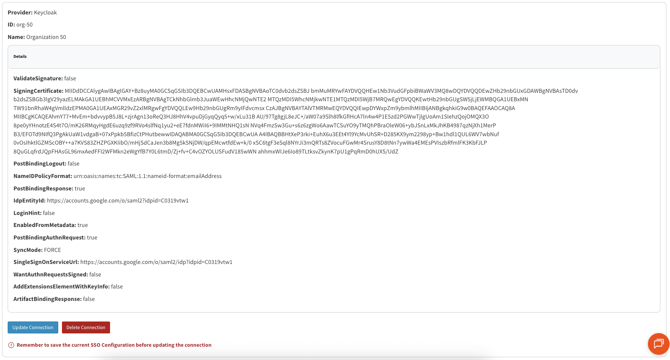
To configure the Service Provider Details in your Identity Provider, copy the values from the following fields:
-
ACS URL (“Assertion Consumer Service” URL)
-
Entity ID (also known as “Audience URI”)
-
Start URL
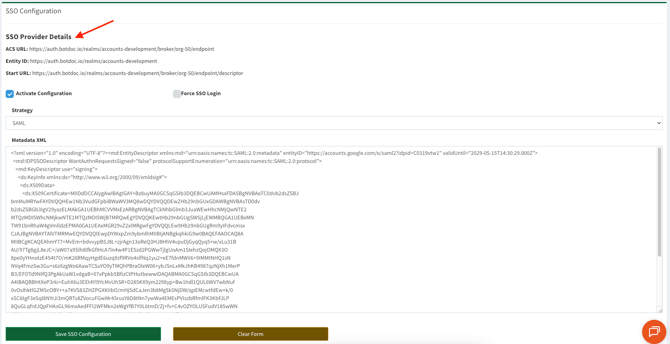
⚠️ REMEMBER: It is necessary to click “Save SSO Configuration“ before clicking “Create Connection” or “Update Connection” to update the connection settings values.
When your configuration is set as desired, check the box “Activate Configuration” and click “Save SSO Configuration”.
Attribute Mapping
What your identity provider must send
Configure your IdP to include these in the SSO response (most do by default):
- Email — the user's email address
- First name (given name)
- Last name (family name / surname)
Botdoc accepts the common names for each — e.g. email, given_name/givenName, family_name/surname. If your provider carries the email in the Name ID (email format), that works too. You do not need to send an employee ID or nickname.
Set up your provider