![logo_full_orange@3x (1).png]](https://support.botdoc.io/hs-fs/hubfs/logo_full_orange@3x%20(1).png?height=40&name=logo_full_orange@3x%20(1).png)
*The availability of this feature may be blocked depending on your MFP License provider. Contact support@botdoc.io if you have questions about availability.
You can add customer logos and branding to the MFP secure session.
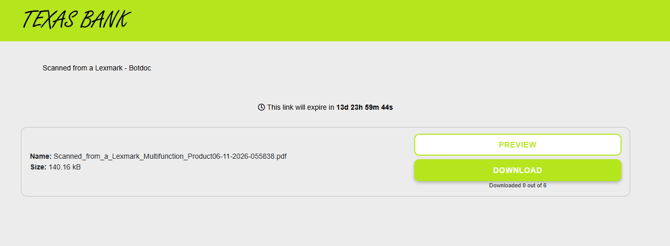
As a note, this does not affect the email that is received. It has an impact on the page where the recipient can download the documents from the MFP scan-to-email.
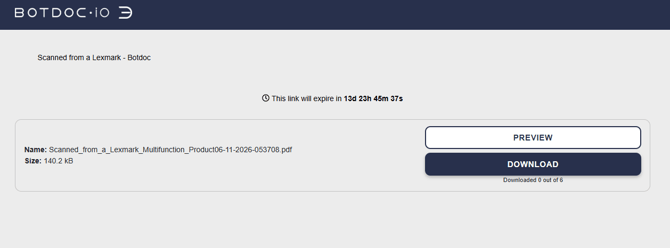
By default, all Spark Workspaces are connected to Botdoc branding.
The defaults are shown below:
In Spark:

In the download session:
To change these settings:
- Navigate to the settings in the lower-left when logged in to Spark.
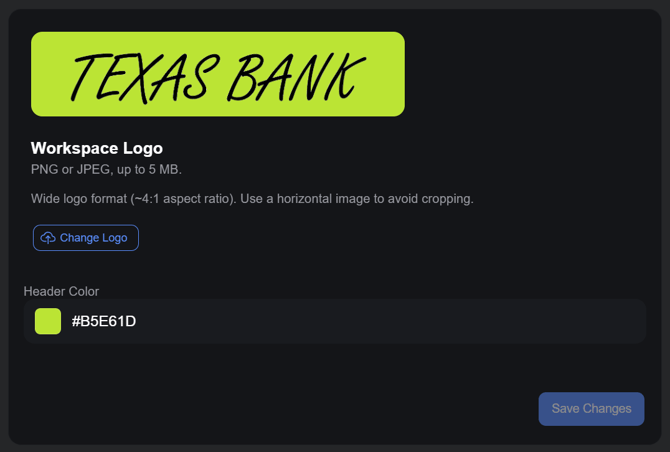
- Under "Workspace Settings," there is a tab labeled: "Branding"
- There, you can upload a logo or change the Header/Button color.
- To change the logo, select "Change Logo."
- To chnage the color, add a Hex color code or click the colored box to use a color selector.
Recommendations:
- Wide logo format (~4:1 aspect ratio).
- Use a horizontal image to avoid cropping.
- Darker, higher contrast header/button colors work best
Example: